
Why disk space is full - even when df says it isn’t
a simple incident - and what it shows us about operating a Linux system instead of just using it
Suddenly you get a disk-full error while writing something to disk.
robert@ubuntu1:~$ sudo tar -cf /srv/data/etc_backup.tar /etc
tar: /srv/data/etc_backup.tar: Cannot open: No space left on device
Ah - not again …
So let’s quickly spin up the df tool and check what’s going on here.
And surprisingly - the disk still seems to have free space left.
robert@ubuntu1:~$ df -h
Filesystem Size Used Avail Use% Mounted on
tmpfs      392M 932K  391M   1% /run
/dev/vda2   12G 7.2G  4.0G  65% /
/dev/vdb1    3G 1.2G  1.8G  40% /srv/data    <-- free space left
...
(see the mentioned 40% for the mountpoint “/srv/data”?)
But despite this - it even fails to create a completely empty file:
robert@ubuntu1:~$ sudo touch /srv/data/testonly
touch: cannot touch '/srv/data/testonly': No space left on device
Tools don’t lie. But they just show you only one single layer of the system.
Here are a few of the real-world problems I’ve seen multiple times on production systems, seemingly coming out of nowhere:
- a service suddenly dies or misbehaves
… and users call you to solve this immediately. - users can no longer log in
.. but they need to exactly now! - the companies website suddenly doesn’t accept new connections
… the “worst case” as your boss states. - users complain about lost or delayed emails
… and they are always waiting for the most important right now. - backups and even log-rotations fail
… and this may have accumulated even more risks hidden in the background over time.
… and at the end, each of these problems was caused by something like a “disk full error”.
Despite the implemented monitoring didn’t alert for a full disk.
I think it’s obvious, that in such a situation, panicking and deleting some large files on the filesystem will not solve the problem while leaving you confident with your solution.
Instead - and this should always be your mantra in troubleshooting - we should tackle the problem in a systematic way to rule out anything that could be the root-cause, until we have identified the real underlying problem.
Or to say it a bit differently:
If you are faced with a problem like this - despite the urgency you may feel to solve it instantly: Always think your way through all the layers that may be involved. And then bind your solution to the right one.
A quick work around may help short-term, but leaves you with uncertainty and the risk of a not long lasting solution.
Let’s use this scenario as an example here - while the same thinking applies far beyond disk space.
What could cause this “I cannot write to disk anymore” problem
a read-only mount?
Perhaps there is a problem with the access to the underlying filesystem? Could it be on a (sudden) read-only mount for instance? Yes - such a scenario would prevent us from writing anything to the filesystem, but the error we see would be a different one (“Read-only filesystem”).
So I would rule out this as a root-cause immediately, but if you are unsure and wanna check this yourself: go through the output of the kernel-logs (via dmesg for instance) and search backwards to see, if you find something related to the device that backs the filesystem (here “/dev/vdb1”).
reserved disk space?
But there is indeed a behavior of some filesystem types, that could show you a similar symptom (“no space left on device” despite df shows free space):
The ext2, ext3 and ext4 filesystems support, that a certain amount of disk space is reserved for “root use only”.
This amount of reserved disk space is configured during filesystem creation (mkfs) - either with a default value of 5% or by a dedicated wish.
If you want to check this, take a look at the output of tune2fs -l <device> and search for reserved blocks:
robert@ubuntu1:~$ sudo tune2fs -l /dev/vdb1
tune2fs 1.47.0 (5-Feb-2023)
Filesystem volume name: <none>
Last mounted on: /srv/data
...
Block count: 786176
Reserved block count: 39308
...
What you see in my example is, that 39,308 blocks out of 786,176 blocks are reserved for root-use only.
As this is roughly 5% of the blocks available, the filesystem seems full for non root users starting from a usage-level of 95%.
An ext4-Filesystem can “behave full” for non-root users if a usage-level of (by default) 95% is reached.
If you need, you can modify this behavior on the fly via tune2fs too. (take a look at the -m ... or -r ... command-line switches)
But because of only 5% of blocks reserved for root while the usage level is ~40% and - more important - we wanted to create files as root itself (I called tar via sudo), there needs to be yet another layer that can lead to this “No space left on device” error.
And there is one.
The problem here is indeed a lack of disk-space …
… but not the disk-space that is used for storing the real data, but the disk-space for the meta-information that needs to be written to disk for every new file.
So - the error itself is correct. Your interpretation simply isn’t.
Let’s take a look at how a file is “organized” on a typical Linux filesystem.
If a file is created, then we need two (better three) pieces that need to fit together.
First: You need empty datablocks on the disk that can be used to store the content of the file
Second: You need some piece of meta-information, that holds these datablocks together and “form” a file from them. This piece of information is stored in a so called “inode”.
And Third: Because the file needs to be addressable by a name, we need to store the name somewhere. This is, what’s called a directory - slightly simplified a list of names, each pointing to an inode
If we glue this all together, it may look like this:
On the right-hand side you see the datablocks, that would be completely anonymous and unrelated to each other if there wasn’t an inode with pointers pointing to these blocks.
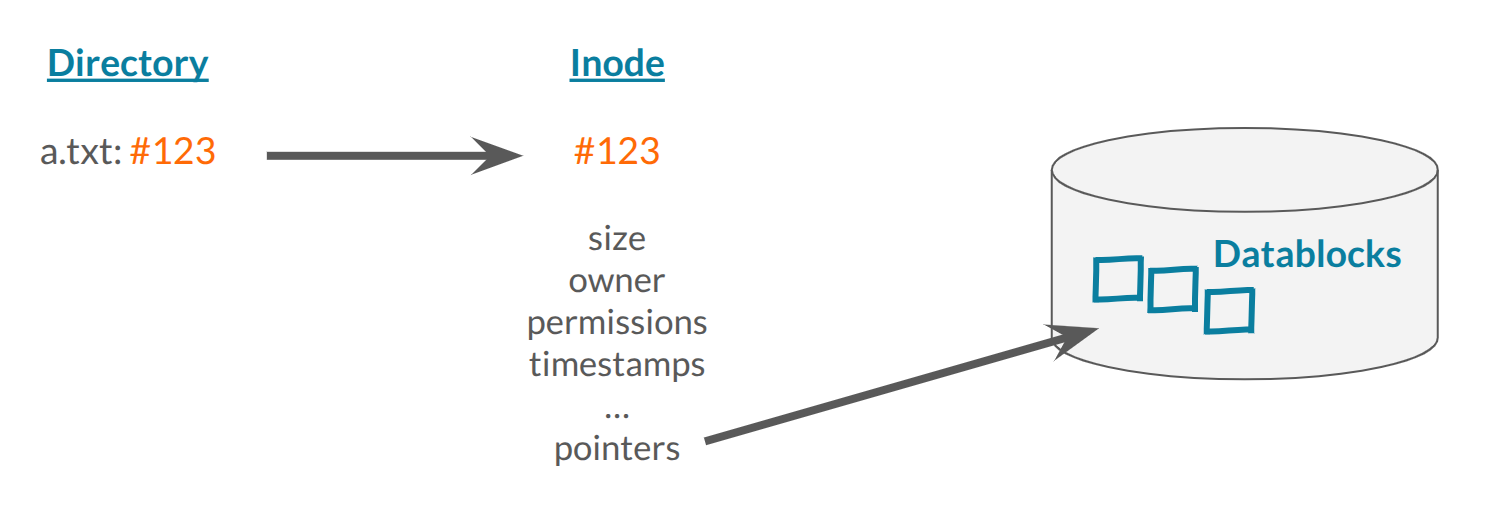
The inode in the middle can be referenced by a filesystem-wide unique number, and holds all the meta-information necessary to organize the file.
The filename itself isn’t part of the stored file, but simply is a sequence of characters (a “filename”) that is connected with a pointer to the inode.
BTW: If you want to see this in action - just add the -i command-line switch to your next call of ls. This will show you then the number of an inode the name points to:
robert@demo:~$ ls -i
69186 a.txt 69187 something.pdf 72568 docs
Understanding this, helps to explain a lot
If you think about this more closely, then you might recognize, that understanding this structure can help you explain a number of phenomena you might be faced with on a Linux system:
- creating or deleting a file consists of a few separate steps that cannot be done “all or nothing” in an atomic manner. So we typically need a filesystem-check after a crash.
- A hardlink isn’t a special type of file on the filesystem. Instead it is only an additional name pointing to an already referenced inode.
… and - back to our problem here:
If we do not have space for storing a new inode left, we cannot create new files - even empty ones.
And because the perhaps most widely used Linux filesystem today “ext4” has a somewhat “fixed structure” for storing the inodes available - these inodes can fill up before you run out of available datablocks.
The problem, or better - the caveat of the typical use of df - is, that it shows you by default the used and available datablocks only. But if asked, it can give you the same information for the inodes too - you just need to add the -i command-line switch:
robert@ubuntu1:~$ df -i
Filesystem Inodes  IUsed  IFree IUse% Mounted on
tmpfs      501236    662 500574    1% /run
/dev/vda2  786432 191795 594637   25% /
/dev/vdb1  196608 196608      0  100% /srv/data   <-- THIS IS FULL!
...
So this is the missing piece: df shows plenty of free disk space, but the inode-tables are full. So the system cannot create new files - even empty ones.
(And obviously, a more aggressive log-rotation would solve the problem only very short-term.)
In the end - the output of our first quick-check with df -h (and perhaps our monitoring) misled us, not because it gave us wrong data - but because it only showed one single aspect of the filesystem, while others were left out.
(Depending on your environment, there could be yet another aspect (or “enforcement layer”) that could lead to a disk-full error: a configured disk-quota. I’ve ruled out this immediately, because I know it wasn’t implemented here)
This is only one example of a pattern you’ll see in many different situations.
Let’s solve the problem
So now that we have systematically identified the root-cause of the problem, going through multiple layers, we can now solve the problem calmly and with confidence.
What are our options now?
make or provide space
Well - the first and most obvious one is to remove some no longer used files, or second - to expand the disk if possible.
If you’ve ever searched for “wasted” disk space - you certainly have used the du command for this. And if you ask - du can give you the occupied inode-count per directory too:
robert@ubuntu1:~$ sudo du --inodes -s /srv/data/*
1      /srv/data/lost+found
1234   /srv/data/some_data
1      /srv/data/test1
195362 /srv/data/tmp       <-- HUGE amount of inodes
As you can see in my example, the vast majority of the inodes are used within “/srv/data/tmp”.
Such a behavior can often be seen in situations, where over a long period of time temporary files were not consistently removed after use. (for my demonstration, I indeed created a ton of empty files there).
create the filesystem differently or use a different one
Yes - this is not really a direct solution to the actual problem, but more a “risk minimizer” for the future: If you - for the next time - create a filesystem for an unusual amount of really small files, you can tweak the inode-to-blocks ratio while calling mkfs.ext4.
Or choose a filesystem that is - because of its internal structure - not prone to this type of problem: xfs and btrfs for instance create the inode-structures “on-the-fly”, so that you never can run out of them.
What I wanted you to show …
What I wanted to show you with this (besides some interesting technical explanations):
Don’t trust the tools blindly - understand what they really measure …
… instead use your understanding of the system to walk systematically through all the aspects, that could cause the behavior you see.
So the next time you’re faced with a similar problem, instead of
- randomly trying cleanups
- do more log-rotations - just to be safe
- provide even more disk space
you now tackle the error systematically
- you go through all the layers that could enforce the behavior you see
- you analyze the layers you cannot rule out immediately, systematically
- … until you identified the real root-cause. and then you use this to build up your solution and try to lower the chance for the next error.
Just because at the end, only this approach gives you a solution, you can confidently count on.
As an old saying states: Clarity creates speed - and confidence.
One step further
What we’ve done here is not a special case - but it’s a really good illustration for a pattern you will encounter again and again on Linux systems:
- a single tool shows only a slice of the whole system
- to stay in control, you must consider every layer that may enforce what you’re seeing
In this post I used disk space as a very fitting example for this way of thinking.
But the same applies to other aspects of troubleshooting like:
- permissions that look correct - but are enforced elsewhere
- services that “randomly” fail - but follow clear rules
… but also to the simple and boring “operating” of a system.
Once you understand how the system components interact and what each can enforce, the shift is simple - but powerful:
You stop reacting to outputs.
You start asking:
Which layer is actually enforcing what I’m seeing? And how can I make it work the way I want - reliably?
And once you do that consistently, something changes: You don’t just fix issues anymore and you stop using these annoying search-copy-paste-troubleshoot cycles …
You start operating the system - with a model you can rely on.
When Linux looks contradictory, slow down
df is not lying.
But it may not be answering the question you think it is answering.
That is one of the small but important shifts in Linux troubleshooting:
Don’t just react to command output.
Understand what the command actually measures - and what may still be outside that view.
That is exactly the kind of thinking LinuxBOSS is built to develop:
→ understand what your tools really show you
→ connect symptoms to the underlying system behavior
→ operate Linux with more clarity and confidence