When chmod 777 is not enough - and the service still can’t access the file
a simple permission error - and why you might be looking at the wrong layer
Imagine this: You are confused staring at your webservers logfile. At this one single line that states it cannot serve the file you want - because of a “permission denied” error.
[Wed Apr 01 13:34:31.831239 2026] [core:error] [pid 769:tid ...]
(13)Permission denied: [client 100.115.92.25:42722] AH00132:
file permissions deny server access: /srv/www/htdocs/index.html
But haven’t you already - while promising its only for a test - done a chmod 777 for this file?
The website should be up and running for hours now - but the only thing you get is this:
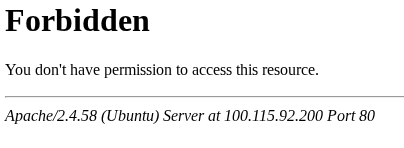
You followed the same procedure as last time you did something similar. You even copied & pasted command lines from a previous documentation …
… but the server somehow still fails to serve the site, because something still refuses to give him access.
And shouldn’t the final chmod 777 give full access to the file for everyone? And shouldn’t this mean, that the service should be able to serve it?
It seems to make no sense anymore:
The permissions are world-open. So there simply cannot be a permission denied anymore!
Wait - not this fast …
As always - Linux doesn’t behave somehow “randomly”:
If anything fails, then because of something that is enforcing it - a part of the whole system (a “layer”) we may haven’t taken into account yet.
And our job is to find this layer and correct the issue.
So take a step back and approach this like an experienced administrator would do:
On every system, most of the time there isn’t only “the one single root of truth” - instead there are multiple different aspects that interact with each other and lead to the facts we experience.
Or more memorable: We need to look at all the layers, that could explain the behavior we see.
So let’s go through the applicable layers systematically and see where your intention breaks.
Start with the obvious one - the output of ls -l
robert@ubuntu1:~$ ls -l /srv/www/htdocs/index.html
-rwxrwxrwx 1 root root 85 Jan  5 14:11 /srv/www/htdocs/index.html
This output shows us two things:
First: Despite the fact that the file is owned by root, everyone on the system should have read, write and even execute access to this file (see the last rwx triple)
Second: There aren’t additional ACLs involved that could block the access. If there were, we would recognize this via a trailing + - sign following the list of rwx flags.
(At least this would us tell that there were ACLs attached - no matter if they are something enforcing or not.)
How ACLs could block access
ACLs are a way to attach more than the three rwx permission-sets for the parties “owner”, “group”, and “others” to a file.:
With ACLs, you can name as many users and groups as you like and provide them with a combination of rwx to match your needs.
And because ACLs are evaluated in a defined order (from most to least specific), you can block access to a user or a group even if “others” are allowed for everyting.
In case you are not familiar with ACLs, let me demonstrate this behavior for my local user robert here.
First: add an ACL-entry that block the user from the file
sudo setfacl -m user:robert:- /srv/www/htdocs/index.html
Second: Let’s verify that the ACL is in place
robert@ubuntu1:~$ ls -l /srv/www/htdocs/index.html
-rwxrwxrwx+ 1 root root 85 Jan  5 14:11 /srv/www/htdocs/index.html
          ^---- see the appendend +

robert@ubuntu1:~$ getfacl /srv/www/htdocs/index.html
getfacl: Removing leading '/' from absolute path names
# file: srv/www/htdocs/index.html
# owner: root
# group: root
user::rwx
user:robert:---           <-- here is the ACL entry that will block roberts access
group::rwx
mask::rwx
other::rwx
Third: Verify that robert is blocked
robert@ubuntu1:~$ cat /srv/www/htdocs/index.html
cat: /srv/www/htdocs/index.html: Permission denied
Take care of the whole path
If you want to verify, that a certain user really has access to a specified file, you need - of course - to make sure, that the whole path up to this file is accessible by the user.
So for our example here, we would need to check /srv , /srv/www , and /srv/www/htdocs - for both - the standard filesystem permissions and enforcing ACLs.
side-note: There may indeed be yet another filesystem enforcement layer involved that’s invisible for the admin using ls -l . Take a look at “file attributes” and the tools lsattr and chattr.
do it pragmatically …
And yes - instead of digging your way from the root of the filesystem to the file itself and check all these bits, we can simply do a test, if a certain user should be able to access a file.
Given, that you have permissions to use sudo, simply try to access the file as the user you want to check the access for.
As my webserver on this ubuntu-system is running as the user www-data, I check in this way
robert@ubuntu1:~$ sudo -u www-data cat /srv/www/htdocs/index.html
<html>
        <head>Welcome</head>
        <body><h1>Hope this works ... :-P</h1></body>
</html>
So still - it looks like it simply has to work!
Till now we’ve already checked three involved enforcement layers
- Identity layer (the user, who wants to access)
- Filesystem permissions
- Extended permissions (ACLs)
But because the read-access for the user www-data to the file obviously works, there needs to be yet another layer that blocks the access to the file.
And there is one: But this layer doesn’t block the access based on the user who accesses the file, but based on the process that is trying to access it.
This additional layer is called LSM - the Linux Security Modules.
And once this layer joins the show …
checking only filesystem permissions is no longer sufficient.
Because it is no longer the only thing in control.
Isolated process-space
Before checking LSM, I would perhaps check - or rule out - yet a different enforcement layer: The execution context of the process.
Only short here: A process can be started with its own private view into the file-system. This starts with running the process within a “chroot environment” and doesn’t end with providing for instance a “private /tmp”.
To rule this out
- check the configuration-file for the service
- check its systemd-unit configuration, or
- take a look into
/proc/<pid>.
The Linux Security Modules
Most modern Linux distributions are invisible equipped with them, to strengthen the security-posture of the whole system, even in the case of a security-breach.
If we wanna analyze them for troubleshooting, we need to know two things:
First: Which different LSM approaches could be enabled, and
Second: How to disable or un-arm them, to prove if they are causing the problem
The two possible LSM frameworks
On today’s Linux distributions, you may stumble upon one of these two LSM frameworks:
- AppArmor - often used on eg. Ubuntu systems
- SELinux - often used on eg. RedHat Enterprise
Both frameworks use a different approach to regulate what a process can do:
While AppArmor attaches “profiles” to running processes based on the path of the executable, SELinux works with file-labels (SELinux “tags”) that are inherited by the process started from a binary and applies rules to them.
Both frameworks are then able to really fine-granular define, what a process is allowed to do - not only on a filesystem level, but also on system-capabilities, like privilege escalation or network-port usage.
If you want to check for the presence of those frameworks, you could simply check for the presence of some tools:
While aa-status is used with AppArmor, sestatus may be available on SELinux enabled systems.
But on a default installation, these userspace-tools may indeed be missing, while AppArmor or SELinux are nevertheless doing their work.
Check for LSM labels on running processes
A more robust way for checking for the presence of AppArmor or SELinux, is to take a look if there are so-called LSM labels associated with running processes.
The ps tool happily gives you this information if called with the uppercase Z command-line switch.
Ok - so let’s check this here for the running webserver-process on my demo-system.
robert@ubuntu1:~$ ps axZ | grep apache2
/usr/sbin/apache2 (enforce)         765 ?        Ss     0:01 /usr/sbin/apache2 -k start
/usr/sbin/apache2 (enforce)         769 ?        Sl     0:00 /usr/sbin/apache2 -k start
/usr/sbin/apache2 (enforce)         771 ?        Sl     0:00 /usr/sbin/apache2 -k start
unconfined                         1908 pts/0    S+     0:00 grep --color=auto apache2
This gives us the familiar output of ps but with a column added to the left-hand side:
This additional column shows the LSM label associated with a process.
In contrast to unconfined for the grep-process, you see for the three /usr/sbin/apache2-processes the name of an assoziated AppArmor profile, and that the rules of this profile are currently enforced (/usr/sbin/apache2 (enforce))
So there is something (the AppArmor profile) enforcing, what the webserver-process is allowed to do.
And this is the moment where most administrators realize they’ve been looking all the time at the wrong layer:
The problem was possibly never the file permissions!
Instead - now a very likely root-cause for our experienced problem could be AppArmor.
The hypothesis:
Although the
chmod 777 ...gave access on the filesystem level, AppArmor doesn’t evaluate this. It instead enforces its own rules about what theapache2process is allowed to do.
Yet we still need to verify this:
To check, if this enforced profile is causing your trouble, you can temporarily set it to complain mode only:
robert@ubuntu1:~$ sudo aa-complain /usr/sbin/apache2
Setting /usr/sbin/apache2 to complain mode.
side-note: You may first need to install the AppArmor userspace-tools, if not available. On ubuntus systems, this package is called apparmor-utils)
Now - with the profile in complain mode only - let’s try the failed-action again (here: reload the webpage) and … yeah!

This confirms it:
AppArmor was the root-cause of the problem in this example, not the filesystem permissions.
So despite the fact that you did everything exactly the same like last time (didn’t you even copy & paste command lines from your documentation?) - it didn’t work out here.
Just because of a new distribution or distribution-version you are on, or simply just because of that the current system is simply more hardened then the previous one.
And we analyzed the problem by checking every layer we are aware of and that might be involved, until we found the cause of the problem. And even better - we can now explain this behavior.
… and now - after switching the AppArmor profile to complain-mode only - the action succeeds, and only a warning in the kernel-logs (see the output of dmesg) will point to the “broken against” AppArmor-rule.
To enable the AppArmor profile later again, use aa-enforce.
What does this look like with SELinux
On an SELinux enabled system, the labels ps axZ gives you a look differently than with AppArmor - but I think you can recognize easily that something (from an enforcement standpoint) is active there:
Here’s how the output looks like on a RHEL system:
[robert@rhel ~]$ ps axZ | grep http
system_u:system_r:httpd_t:s0       1626 ?        Ss     0:00 /usr/sbin/httpd -DFOREGROUND
system_u:system_r:httpd_t:s0       1627 ?        S      0:00 /usr/sbin/httpd -DFOREGROUND
system_u:system_r:httpd_t:s0       1628 ?        Sl     0:00 /usr/sbin/httpd -DFOREGROUND
system_u:system_r:httpd_t:s0       1629 ?        Sl     0:00 /usr/sbin/httpd -DFOREGROUND
system_u:system_r:httpd_t:s0       1630 ?        Sl     0:00 /usr/sbin/httpd -DFOREGROUND
unconfined_u:unconfined_r:unconfined_t:s0-s0:c0.c1023 1813 pts/0 S+   0:00 grep --color=auto http
As you see here - the httpd-processes are labeled with system_u:system_r:httpd_t:s0, which references a tag, which itself is the thing SELinux uses to build its rules.
Differently from what we’ve done with AppArmor, we cannot somehow “defuse” an SELinux rule-set for a single process easily.
Instead, we need to deactivate the rule-enforcement as a whole with ‘setenforce 0’.
With getenforce you can later-on see the enforcement-level currently active;
[robert@rhel ~]$ sudo getenforce
Permissive
and you can enforce it later again with setenforce 1.
How to solve this level of enforcement
Well - the short and boring answer is most of the time: Comply with the rules.
A bit more verbose:
As with anything on a Linux system, you can modify the rules of the game to meet your needs.
While this can be done with AppArmor-profiles more easily (take a look at the text-based profiles under /etc/apparmor.d/), the modification of SELinux rule-sets needs - based on my experience - way more deeper knowledge to get what you want, while not breaking anything else.
And you are always at risk for losing your configuration, if your distribution- or package-maintainer ships an updated set of rules - or you might simply miss the optimizations.
And all this without gaining a real benefit from our own adaptations.
So for the example of this post here: I would simply place the files to serve into the directory the distributor intended for this - often /var/www.
If you don’t know exactly where:
read the documentation of your distribution
Yes - I know - this is a really boring one. But as a bonus, this often gives you even more aha-moments.
take a look at the text-based AppArmor profile, if applicable
Chances are high you recognize the needed path within the file:
robert@ubuntu1:~$ cat /etc/apparmor.d/usr.sbin.apache2
...
# === DOCUMENT ROOT (ALLOWED) ===
/var/www/** r,
...
or - if you need to take care of SELinux …
use -Z for the ls command too
… and try to find a directory, with an appropriate looking security tag. Then place your files there.
[robert@rhel ~]$ ls -lZ /var/www
total 0
drwxr-xr-x. 2 root root system_u:object_r:httpd_sys_script_exec_t:s0  6 Dec 18 00:00 cgi-bin
drwxr-xr-x. 2 root root system_u:object_r:httpd_sys_content_t:s0     44 Jan 20 15:16 html
Where this goes
As you’ve seen, simply panicking about a problem (and yes - I call a chmod 777 ... panicking), doesn’t solve the problem. And if perhaps it does either, it won’t be a long-term solution.
You have only really solved a problem, if you can explain it
And to speed things up: Take your time! Work through all the layers that maybe involved and rule them out one after the other. Until you see the results you want.
Because: Clarity creates speed - and confidence.
If it doesn’t make sense, you’re looking at the wrong layer.
What you’ve seen here is not a special case.
Whenever something doesn’t behave as expected, there is always a layer enforcing it - even if it’s not the one you’re currently looking at.
And once you get used to approaching systems like this, something changes:
You stop guessing.
You start operating.
… and you deeply understand what’s actually going on.
Want to build this way of thinking more systematically?
This is exactly where most people stay stuck.
They try things until something works -
but don’t see what actually enforces the behavior.
If you want to move beyond
“trying things until they work”
→ to understanding what enforces the system
→ to making it behave predictably
→ to actually operating Linux instead of just using it
that’s exactly what LinuxBOSS is built for.
👉 See how LinuxBOSS builds this way of thinking
thelinuxboss.com